

Telehealth • Video Therapy
I offer individual and couples therapy via secure video using SimplePractice's HIPAA-compliant telehealth platform — easy to use from any computer, tablet, or phone.
To log in for your video appointment, please check your email for an appointment reminder from SimplePractice with your unique video appointment link. If you are having trouble finding it, please let me know and I can have it re-sent.
Secure and HIPAA compliant video sessions are available via the SimplePractice service (more info about SimplePractice Telehealth here)
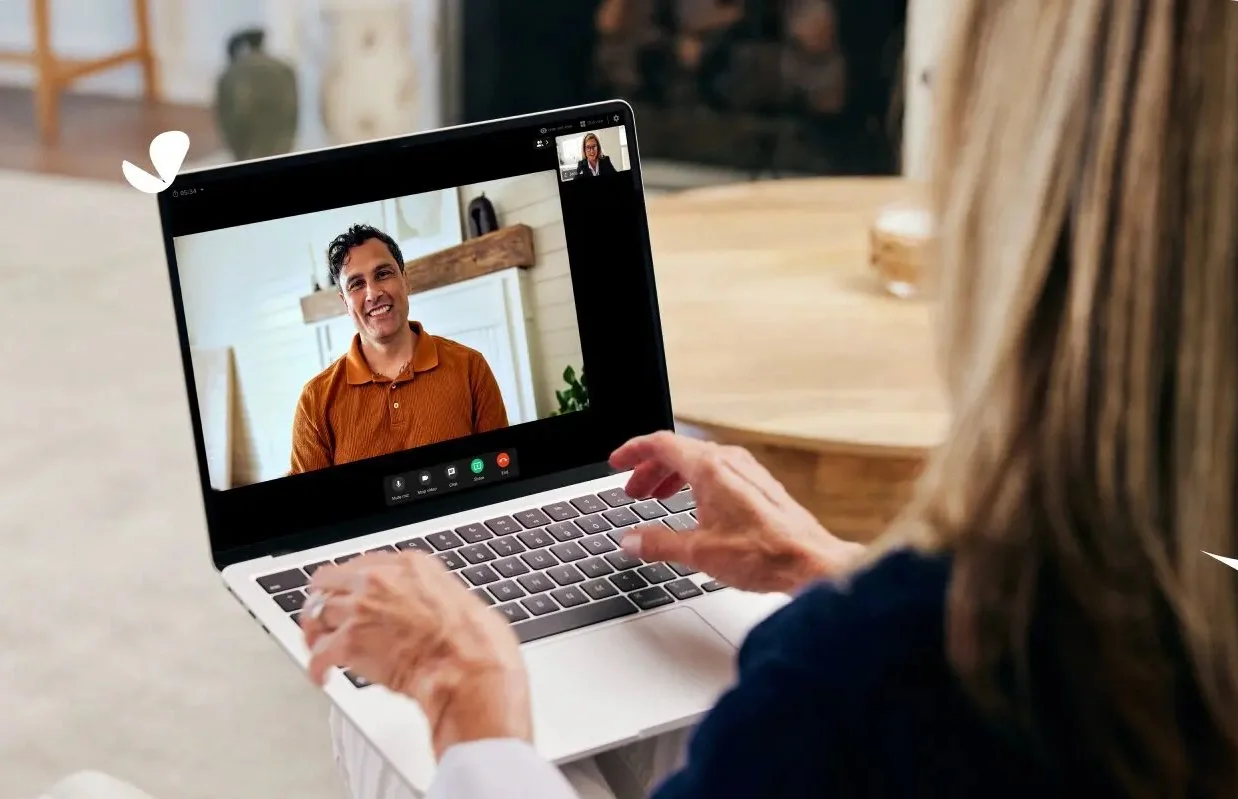
Minimum requirements for Telehealth
To participate in Telehealth sessions, you’ll need one of the following devices:
Desktop computer with a webcam, speakers, a 2.5 GHz processor, and 4 GB of RAM
Laptop computer with built-in webcam and speakers, a 2.5 GHz processor, and 4 GB of RAM
For best results, we recommend using a desktop or laptop computer with 8 GB of RAM or more
Tablet with built-in webcam and speakers
Smartphone with at least iOS 15 or Android 14
Note: In order to use a smartphone for Telehealth appointments, you'll first need to download the Telehealth by SimplePractice app or the SimplePractice Client Portal app (both available for iOS or Android).
You’ll also need an internet connection that's at least 0.35 mbps. For optimal results, a reliable, high-speed internet connection with a bandwidth of at least 10-15 mbps will minimize connection issues and provide the best quality.
Preparing your space for a virtual appointment
Before you begin your Telehealth appointment, identify a suitable space that’s quiet, private, and free of distractions.To keep background noise to a minimum, make sure to close any doors, shut windows, turn off the television, and keep loud pets in another room, if possible. You may want to consider hanging a “Do Not Disturb” sign on the door to avoid interruptions.
Tip: To temporarily mute or unmute yourself during a Telehealth session, press and hold down the spacebar.
Joining a video call
Note: You can also join a Telehealth appointment directly from the SimplePractice Client Portal app. To learn how, see Joining a Telehealth appointment.
Your email and/or text appointment reminder will contain the unique, one-time link you'll use to join your Telehealth appointment. You'll receive this reminder 10 minutes before your appointment start time. When you're ready to join, click the video appointment link.
Note: The exact time you receive your text reminder may vary based on your cell phone carrier. If you can't find the appointment reminder with your video appointment link, see What should I do if I haven't received the video appointment link?
Your video call will open in a new tab on your web browser (if you're on a computer) or in the Telehealth by SimplePractice app (if you're on a mobile device). For a walkthrough of this process, see:
Important: To increase the security of your Telehealth calls, you'll receive a unique link for each video appointment link. Because these links expire after your appointment takes place, you can't bookmark and reuse a link.